Create your first documentation page
Creating a section with pages (e.g. 'Example Section')
To add a new section, create a folder docs-documentation/<folder_name>.
Add the following json. You can replace label and position with whatever:
{
  "label": "Example Section",
  "position": 2,
  "link": {
    "type": "generated-index",
    "description": "Option description. Not sure what for."
  }
}
- Apple
- Orange
- Banana
- docusaurus.config.js
- src/css/custom.css
- myDoc.md
module.exports = {
  themeConfig: {
    prism: {
      magicComments: [
        // Remember to extend the default highlight class name as well!
        {
          className: "theme-code-block-highlighted-line",
          line: "highlight-next-line",
          block: { start: "highlight-start", end: "highlight-end" },
        },
        {
          className: "code-block-error-line",
          line: "This will error",
        },
      ],
    },
  },
};
.code-block-error-line {
  background-color: #ff000020;
  display: block;
  margin: 0 calc(-1 * var(--ifm-pre-padding));
  padding: 0 var(--ifm-pre-padding);
  border-left: 3px solid #ff000080;
}
In JavaScript, trying to access properties on `null` will error.

```js
const name = null;
// This will error
console.log(name.toUpperCase());
// Uncaught TypeError: Cannot read properties of null (reading 'toUpperCase')
```
To add new pages to this section, create new markdown pages under <folder_name>, identical to this page.
These markdown files will be interpreted as .mdx meaning they support JSX as well. Not essential, but if you want VSCode to stop yelling at you for "syntax errors", download this extension.
Code Blocks
Markdown code blocks are supported with Syntax highlighting. For instance, writing this:
```python title="procgen/worldgen/generate.py" {2-3,5} showLineNumbers
def add_ground_twigs(target):
    use_leaves = uniform() < 0.5
    selection = density.get_placement_distribution(scale=0.15, select_thresh=0.55, normal_thresh=0.7, return_scalar=True)
    ground_twigs.apply(target, selection=selection, use_leaves=use_leaves)
p.run_stage('ground_twigs', add_ground_twigs, terrain_inview)
```
will produce this:
def add_ground_twigs(target):
    use_leaves = uniform() < 0.5
    selection = density.get_placement_distribution(scale=0.15, select_thresh=0.55, normal_thresh=0.7, return_scalar=True)
    ground_twigs.apply(target, selection=selection, use_leaves=use_leaves)
p.run_stage('ground_twigs', add_ground_twigs, terrain_inview)
Here is the same item in an expandable block:
def add_ground_twigs(target):
    use_leaves = uniform() < 0.5
    selection = density.get_placement_distribution(scale=0.15, select_thresh=0.55, normal_thresh=0.7, return_scalar=True)
    ground_twigs.apply(target, selection=selection, use_leaves=use_leaves)
p.run_stage('ground_twigs', add_ground_twigs, terrain_inview)
Showing images
We can include image viewers like this directly in markdown:
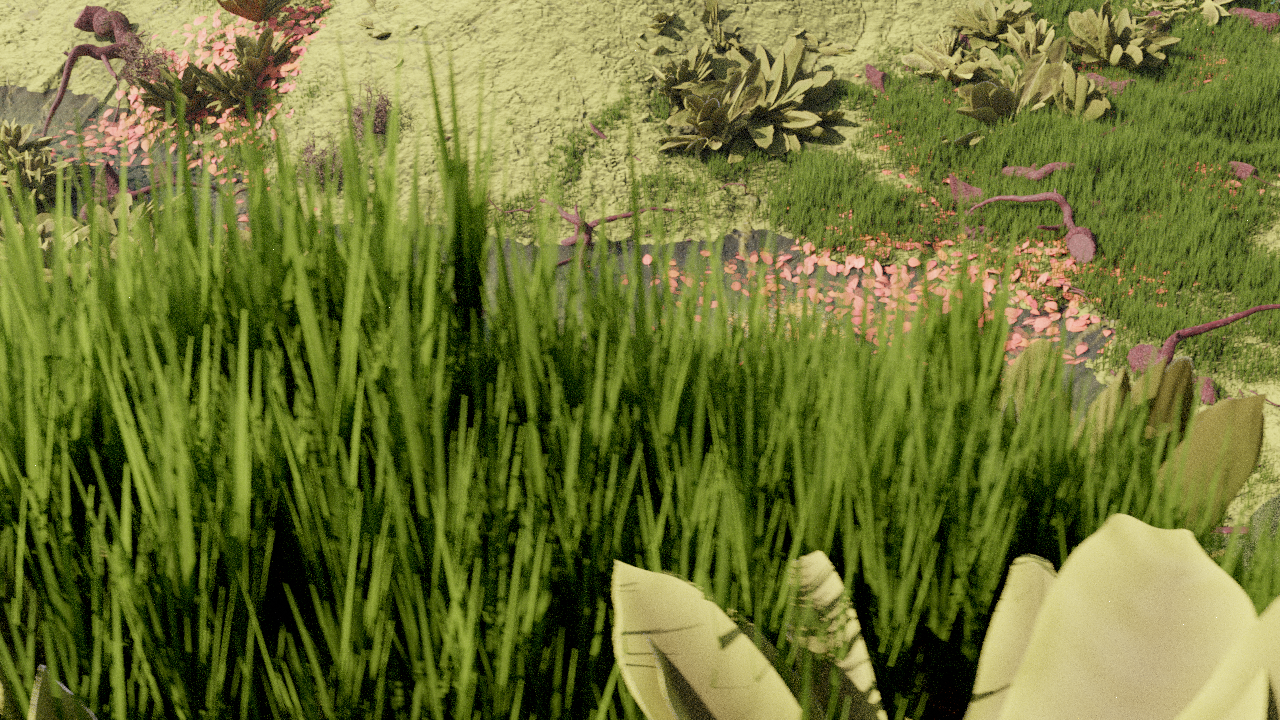
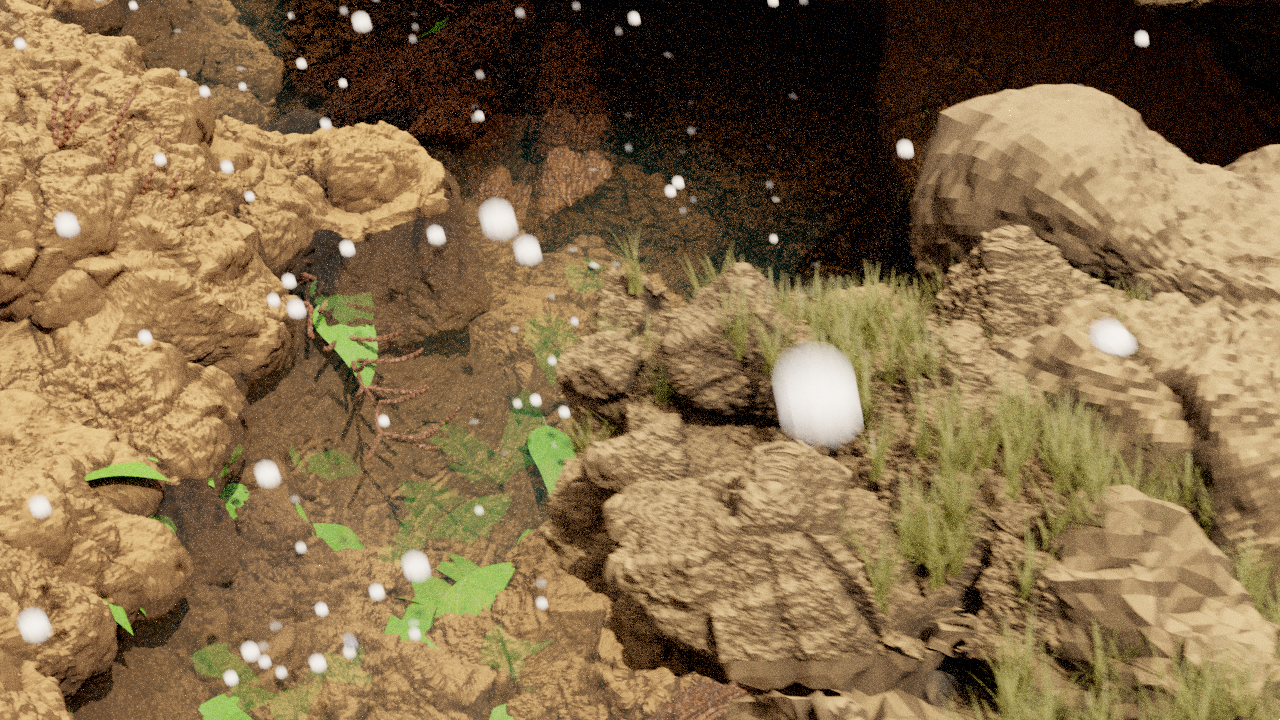
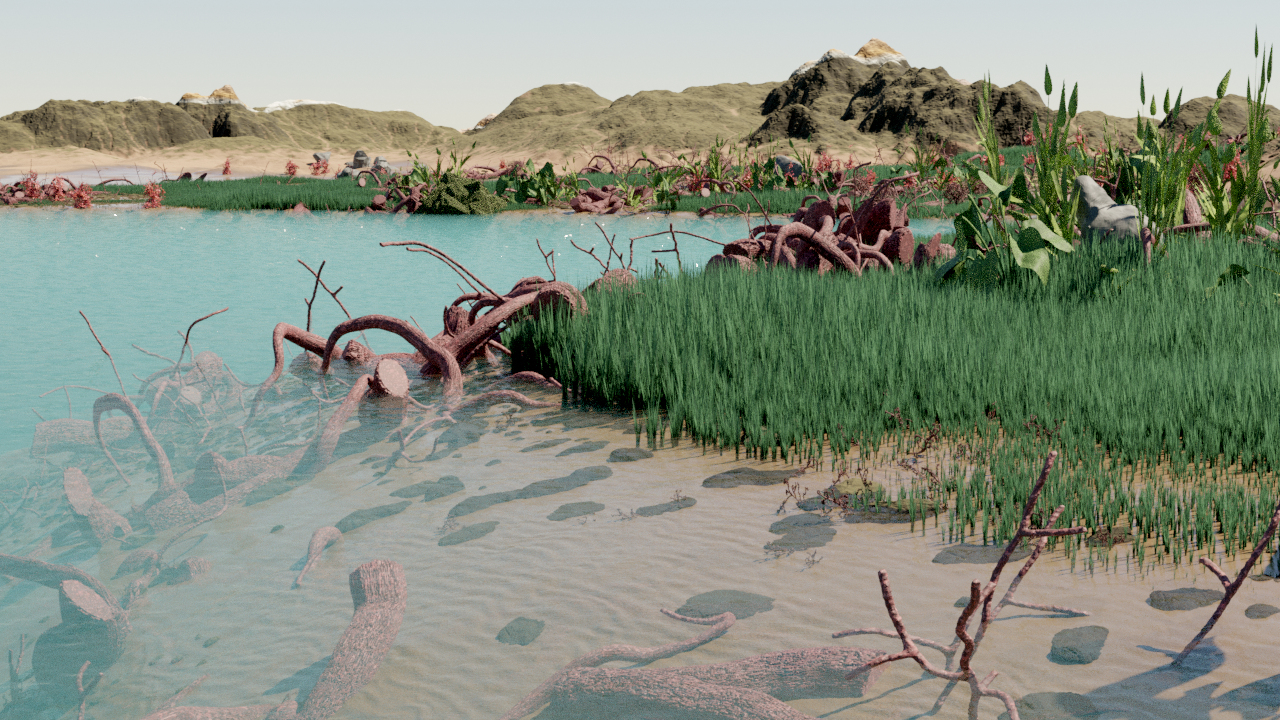
This was creating using:
<AssetPreview
  image_urls={[
    "random_images_for_testing/17319.png",
    "random_images_for_testing/26958.png",
    "random_images_for_testing/4248.png",
  ]}
/>
It is assumed that all image paths are relative to https://infinigen.cs.princeton.edu/, and that there exists a <name>_thumbnail.png for every <name>.png
On ionic, this website root is /n/fs/pvl-progen/website/www. For example:
| Name | thumbnail | Folder | Description |
|---|---|---|---|
17319.png | 17319_thumbnail.png | www/random_images_for_testing | Pretty image. |
26958.png | 26958_thumbnail.png | www/random_images_for_testing | Another pretty image |
To create the low-res thumbnails, run
find /n/fs/pvl-progen/website/www/<path-to-your-images>/ -name "*.png" \
-exec python /n/fs/pvl-progen/website/create_thumbnail_size.py {} \;
Markdown also supports regular images:
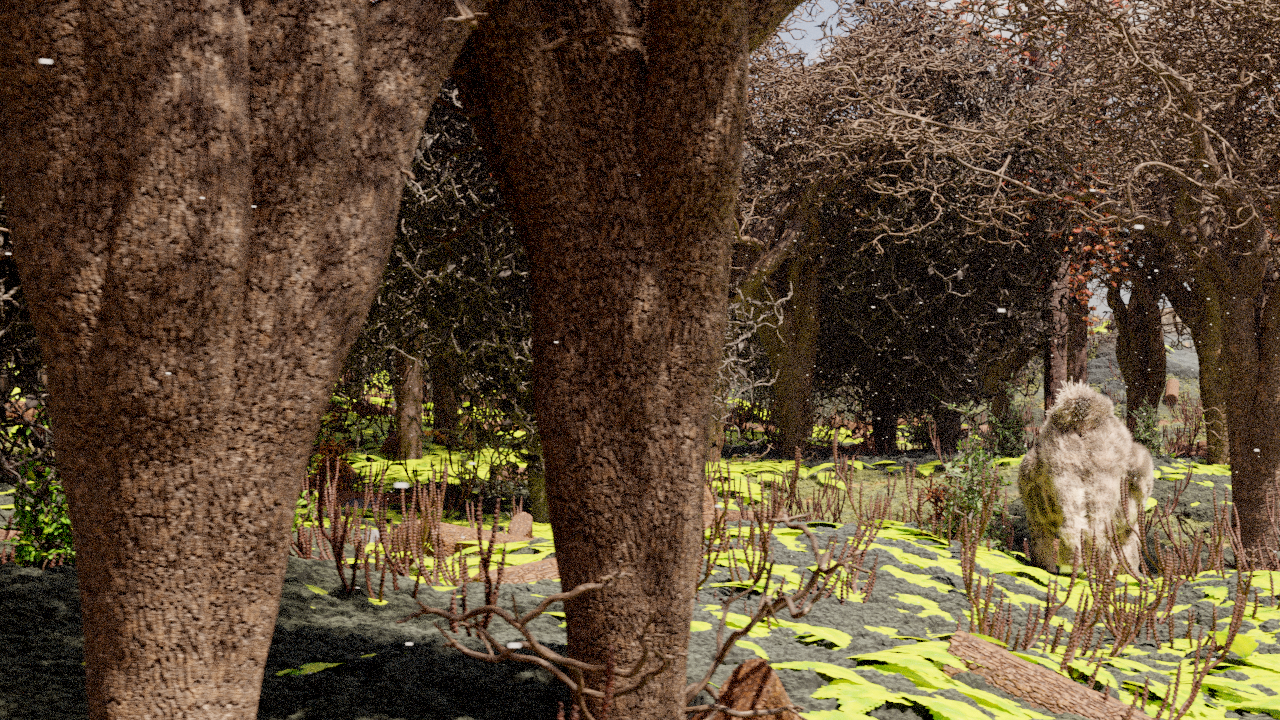
using:

Showing 3D models
Our 3D models are too hi-res to load online. Instead, we can pre-render video frames and view them like so:

This was created using
<PreRendered3D folder={"example"} begin={1} end={160} />
where the frames are stored locally as
static/pre_rendered/example/000001.jpeg- ...
static/pre_rendered/example/000160.jpeg
Storing them online led to a crappy user experimence, imo.
Don't use too many frames. They stored with the website.